The iPhone Automatically Saves Passwords
Many people don’t realize it, but the iPhone has a built-in system for automatically saving passwords.
When you log into apps or websites in Safari, the iPhone can store:
- • Emails
- • Passwords
- • Logins
- • Authentication codes
Everything is protected by Face ID, Touch ID, or your device passcode.
How to Access Saved Passwords on iPhone
To view your saved passwords use the official "Passwords" app or:
- 1. Open Settings
- 2. Go to “Passwords”
- 3. Authenticate with Face ID
- 4. View all saved accounts
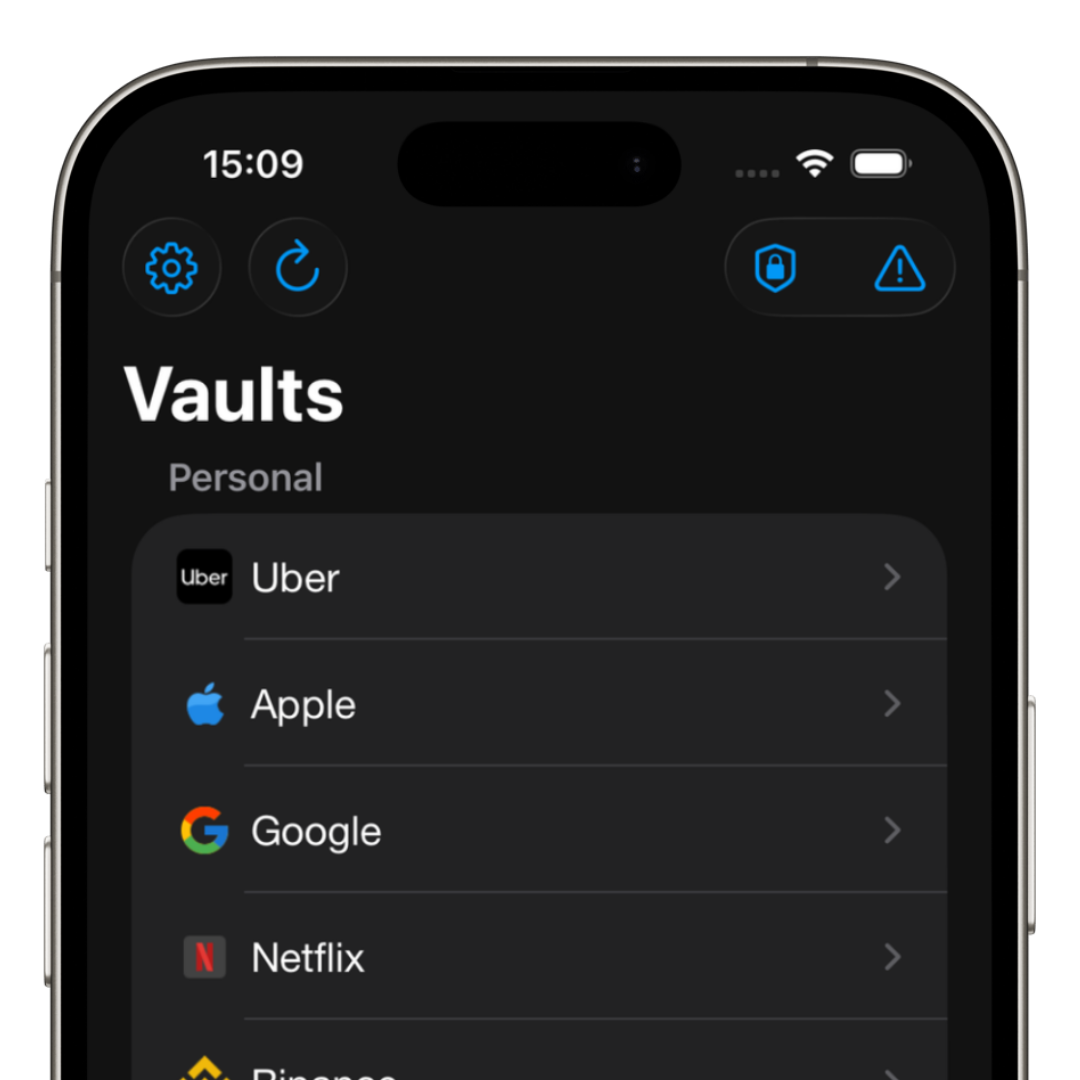
The iPhone will display a list containing:
- • Websites
- • Apps
- • Usernames
- • Stored passwords
You Can Search for Specific Accounts
Yes.
There is a search bar to quickly find:
- • Gmail
- • Banks
- • Streaming services
This makes it much easier to find old passwords.
The iPhone Also Warns About Leaked Passwords
Apple’s system can identify:
- • Weak passwords
- • Reused passwords
- • Leaked credentials
These alerts appear inside the “Password Security” section.
It’s worth reviewing them regularly.
Can I Export My Passwords?
Yes.
The iPhone allows you to export credentials to other password managers.
This makes migration easier if you want a more advanced app.
The Problem with Depending Only on Apple’s System
Although it’s very secure, Apple’s system still has some limitations.
Especially for users who want:
- • Advanced organization
- • Smart folders
- • Secure notes
- • Pix keys
- • Password history
- • Extra protection features
iSenhas Goes Beyond the iPhone Keychain
iSenhas offers additional features focused on convenience and day-to-day security.
Including:
- • Automatic organization
- • Smart icon recognition
- • Breach monitoring
- • Theft protection during usage
- • 2FA code storage
Everything integrated with Face ID and autofill on iPhone.
Be Careful When Showing Your Passwords
Many people access the password section around others without realizing the risk.
Always be careful when:
- • Sharing your screen
- • Showing your unlocked phone
- • Using public devices
After all, nearly all your accounts are stored there.
Conclusion
The iPhone has an excellent built-in password management system.
Through Settings, you can view, edit, and organize saved credentials.
But for users who want more features, automation, and advanced protection, specialized apps can offer an even more complete experience.