Why lock apps on your iPhone?
Today, practically our entire lives live inside our phones.
Banking apps, social media, email, WhatsApp, and personal photos are all available on the device.
That's why adding an extra layer of protection to your apps has become extremely important.
In this guide you'll learn two ways to protect apps on iPhone: using Screen Time and using the newer Face ID lock available in more recent versions of iOS.
In this article
Method 1: How to lock apps using Screen Time
The video below shows exactly how to set up app locking on iPhone step by step using Screen Time.
The most widely used method on iPhone relies on the "Screen Time" feature.
With it, you can set a limit for specific apps and require a passcode to keep using them.
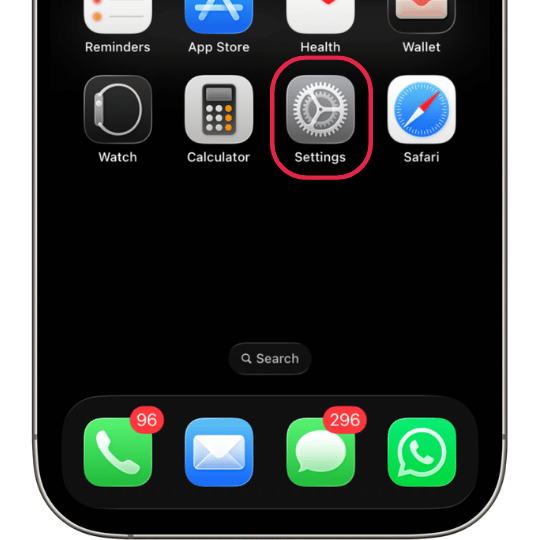
Step 1 — Open Settings
Open the "Settings" app on your iPhone.
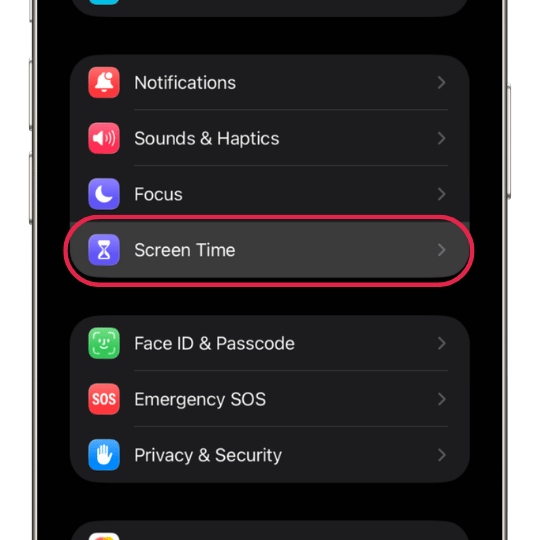
Step 2 — Go into Screen Time
Scroll down until you find "Screen Time".
If it isn't enabled yet, turn the feature on.
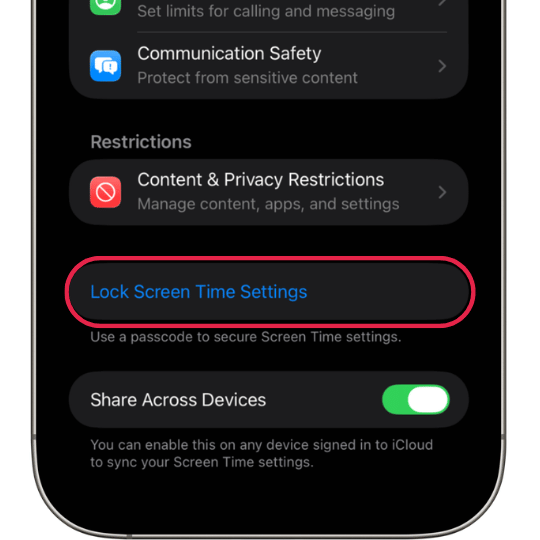
Step 3 — Tap to lock Screen Time settings
Create a passcode to unlock the apps.
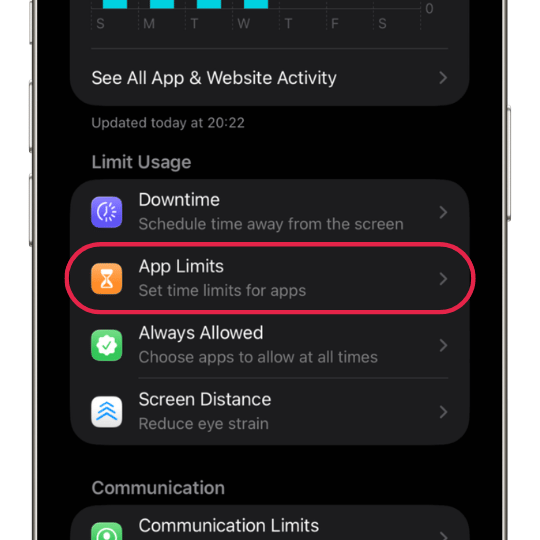
Step 4 — Create an app limit
Tap "App Limits" and then "Add Limit".
Choose the apps you want to protect.
Step 5 — Set it to 0 minutes
Choose the apps you want to lock and set the minimum available time to: 0 minutes.
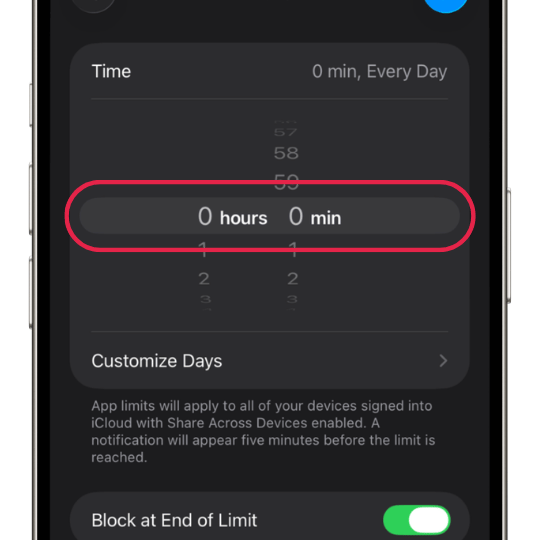
After that, the iPhone will start asking for your Screen Time passcode whenever you try to keep using the app.
Method 2: How to lock apps using Face ID
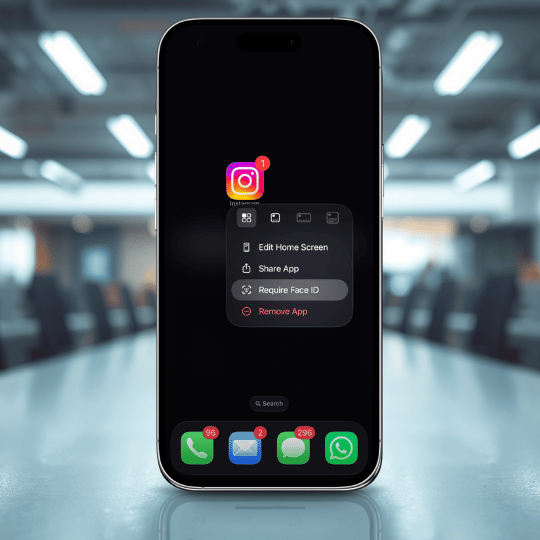
In more recent versions of iOS, Apple added native Face ID locking to several apps. The video below shows how to do this:
Simply press and hold the app icon and tap:
- • Require Face ID
- • Require Touch ID
- • Require Passcode
This adds an extra layer of privacy directly within the iPhone's system.
Use a passcode different from your main iPhone passcode to increase your security.
Which apps are worth protecting?
The main apps that typically store sensitive information are:
- • Banking apps
- • Photos
- • Password managers
See also:
🔐 How to protect your Instagram accountUse a password manager
Locking apps helps a lot, but it's also important to use strong, unique passwords.
Ideally, you should store everything in a secure manager, protected by biometrics.
📱 Try iSenhasHow iSenhas can help
iSenhas helps you store your credentials securely and in an organized way.
The app offers:
- • Face ID and Touch ID
- • Automatic organization
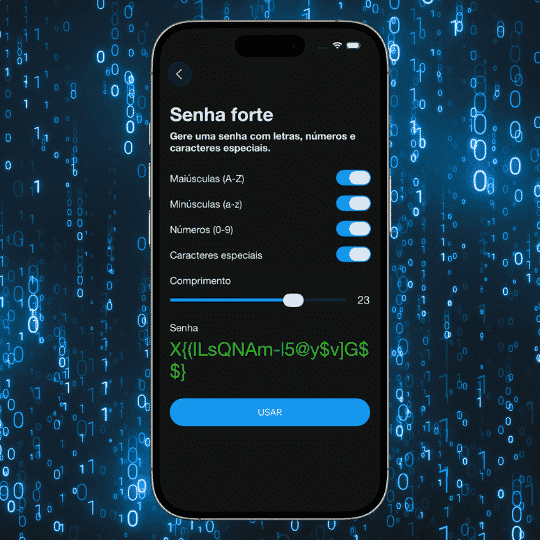
- • Strong password generator
- • Autofill
- • Breach monitoring
- • Compatible with iPhone, Android, and Web
iSenhas highlights
- • 100% Brazilian app
- • Apple Entrepreneur Camp participant
- • Featured in the App Store's "Apps We Love" list
- • Simple, modern interface
- • Compatible with iPhone, Android, and Web
Frequently asked questions
Can I put a password on any app?
Yes. Starting with iOS 18, the iPhone lets you require Face ID, Touch ID, or a passcode to open almost any installed app. You can also lock older apps using the Screen Time feature.
Does Face ID work with every app?
For most apps compatible with iOS 18's native lock, yes. For apps that don't yet support this feature, Screen Time remains the most reliable alternative.
Can WhatsApp be locked?
Yes, WhatsApp can be locked both with iOS 18's native lock and with the Screen Time feature.
Can Instagram be locked?
Yes. Instagram is also compatible with the native app lock and with Screen Time, following the same steps in this article.
Is Screen Time safe?
Yes. The feature is native to Apple and the passcode is stored only on the device itself. Even so, we recommend using a passcode different from your main iPhone passcode.
Conclusion
Putting a password on your iPhone apps is one of the simplest ways to boost your privacy.
In just a few minutes, you add an extra layer of protection against unauthorized access.
Combining Face ID, Screen Time, and strong passwords, your information stays much more secure.